How MCCC Can Break Your Sims 4 Save: Time Speed, Story Progression, and More
You probably didn’t intend to break your Sims 4 save file, but the MC Command Center (MCCC) mod may have done it for you. While many MCCC settings appear harmless, some can seriously corrupt your Sims 4 save, trigger irreversible changes, or even cause a permanently broken calendar or world full of out-of-control NPCs. Just a few incorrect tweaks in MC Command Center, and you risk major save file issues or lost progress in your game.

In this article, we’ll identify the most dangerous MCCC settings that can break or corrupt your Sims 4 saves, and we’ll provide clear steps on how to use these mods safely to prevent save game disasters. If you’re troubleshooting a broken Sims 4 game or want to avoid corrupted saves, this guide is for you.
Previously, we also published a detailed overview of all MC Command Center features, along with a comprehensive tutorial on how to properly download and install MCCC in The Sims 4. Be sure to check out those resources for optimal mod management and keeping your Sims 4 saves safe.
Game Time Speed: The Number One Troublemaker
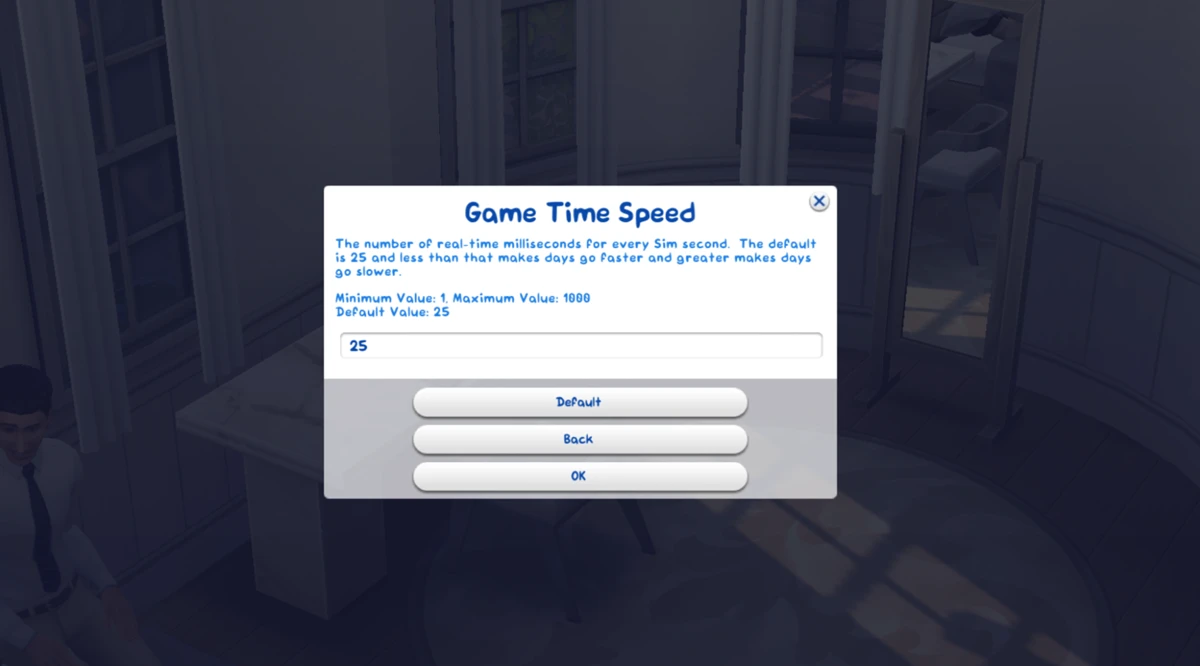
The most dangerous – and at the same time the most popular – setting in MCCC is "Game Time Speed". You can find it under MCCC Settings → Gameplay Settings. The default value is set to 25, which is the standard speed for The Sims 4. Increasing this number slows time down (for example, 50 is twice as slow, 100 is four times slower), while decreasing it speeds things up.
Why Is This Dangerous?
Any change to the game time speed can cause the game's built-in calendar – especially the one from the Seasons expansion pack – to fall out of sync with the in-game clock. This shows up in all sorts of bugs:
- Holidays and festivals start at random times, like one in the morning.
- Seasons change erratically, right in the middle of the week.
- The calendar starts behaving incorrectly altogether.
The real issue is that these glitches can be permanent. A save file where the calendar has "broken" due to a time speed change may stay corrupted for good. That said, some players report that after a few in-game weeks, everything eventually sorts itself out.
There are several ways to fix a broken calendar – we covered them in our article linked here.
It's Important to Understand How This Actually Works
When you slow down in-game time, everything your sims do slows down along with it. They take longer to shower, sleep, and eat. The mod's creator himself has explained that time in the game is linear – it's simply not possible to slow time down while keeping sim actions at their normal pace. So if you're thinking that slowing down the game clock will somehow give your sims more time to get things done in a day, think again. Everything will play out exactly the same, just slower.

On top of that, it puts a strain on the game itself: sims can spend a long time just standing around doing nothing. This happens because slowing down in-game time also causes sims to interact with objects at a slower rate. They'll take longer to decide to do something autonomously.
How to Keep Your Calendar From Breaking
There is a way to change the time speed without breaking your calendar. Before adjusting the speed in your main save, load up a new save, set the time speed values you want there, save the game, and exit. Then go back to your main save – you'll find that the calendar is right where you left it, nothing has shifted, everything is as it was.
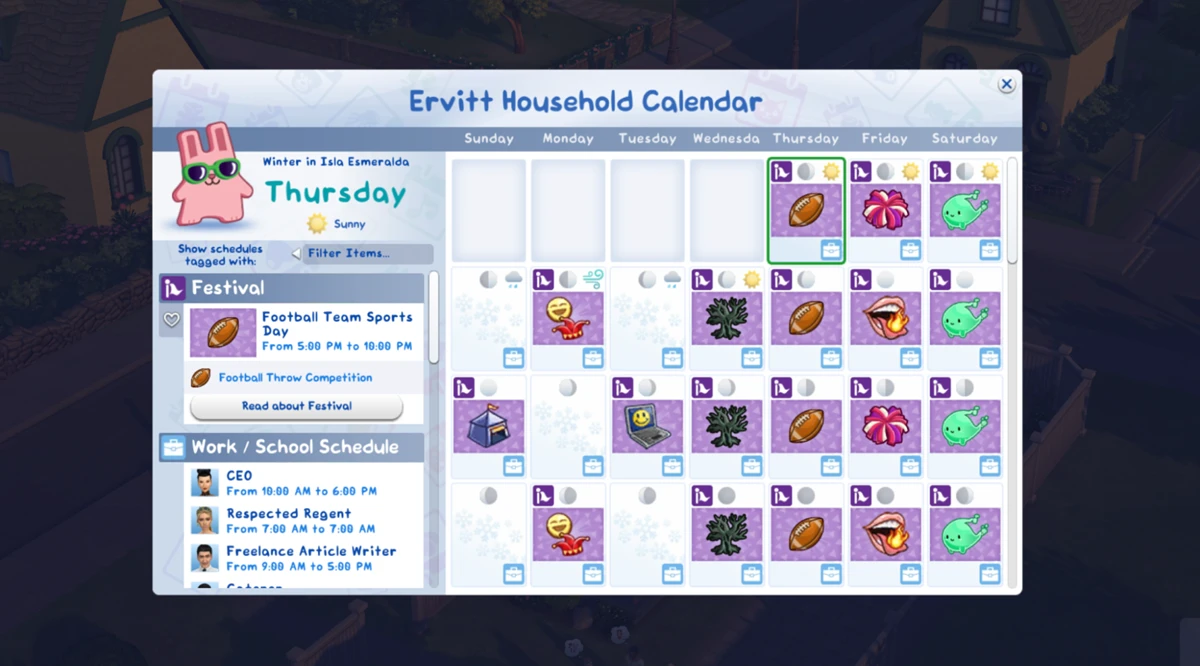
The same applies to events, festivals, and everything else. Things will take longer, but you'll have more time to soak in the moments and grab some screenshots, if that's your thing.
If none of the above sounds scary to you and you want to give the slowdown a try, there's nothing catastrophic about it as long as you use it wisely. Experienced players say that slowing the game down to no more than a value of 32 doesn't cause any calendar issues.
Maximum Household Size: When More Isn't More
MCCC lets you increase the maximum household size from the standard 8 sims all the way up to 104. You can find this setting under MCCC Settings → Gameplay Settings → Maximum Household Size.
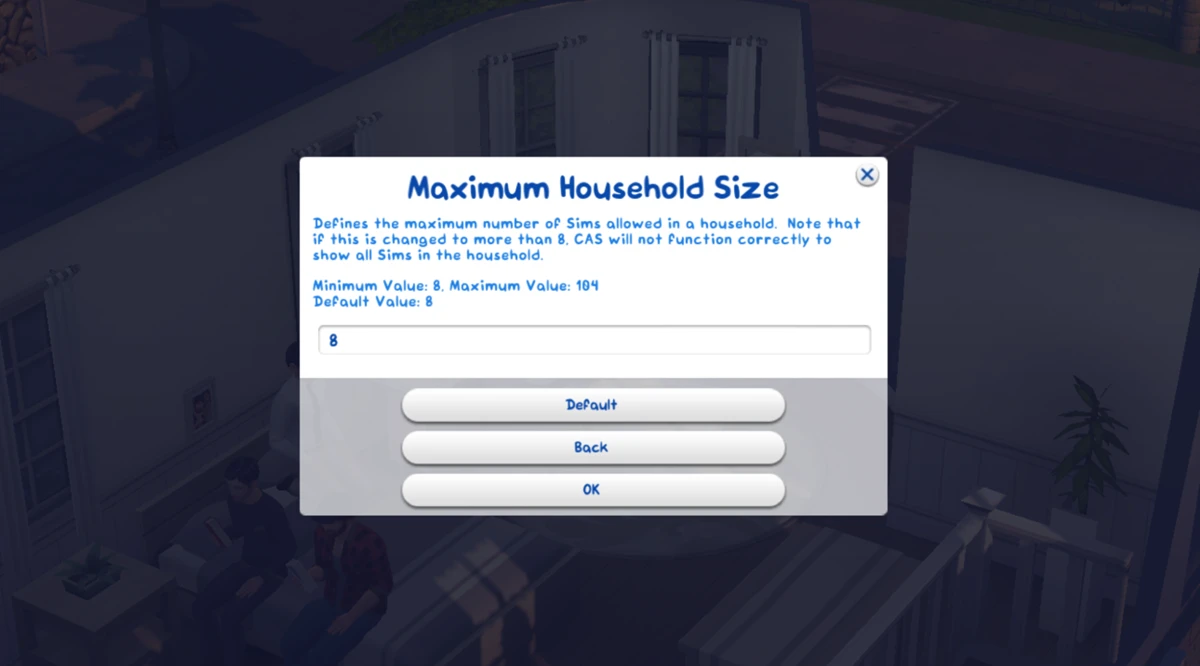
At first glance, the idea of building a large family or a house full of a dozen characters sounds pretty appealing. But there's another side to that coin.
What Can Go Wrong?
Game overload. The Sims 4 simply isn't optimized to handle that many characters in a single household. The interface can start to lag, and sim actions may execute with noticeable delays.

The NPC snowball effect. This setting doesn't just affect playable households, it also impacts non-playable characters (NPCs). If autonomous reproduction is enabled, NPCs will start having enormous numbers of children. The world can quickly become overrun with characters, and the game will start choking under the sheer weight of them all. And let's not forget how much sims love collecting an absurd number of pets. Just imagine what happens when you lift the 8-sim cap...
Save file corruption risk. When there are too many sims in a single household or in the world at large, the game may start throwing errors when trying to save, and in the worst case, your save file can end up corrupted.

Autosave: A Handy Feature With a Catch
MCCC has a built-in autosave feature that can be a real lifesaver when it comes to protecting your progress. That said, there are a few things worth knowing before you rely on it.
How Autosave Works in MCCC
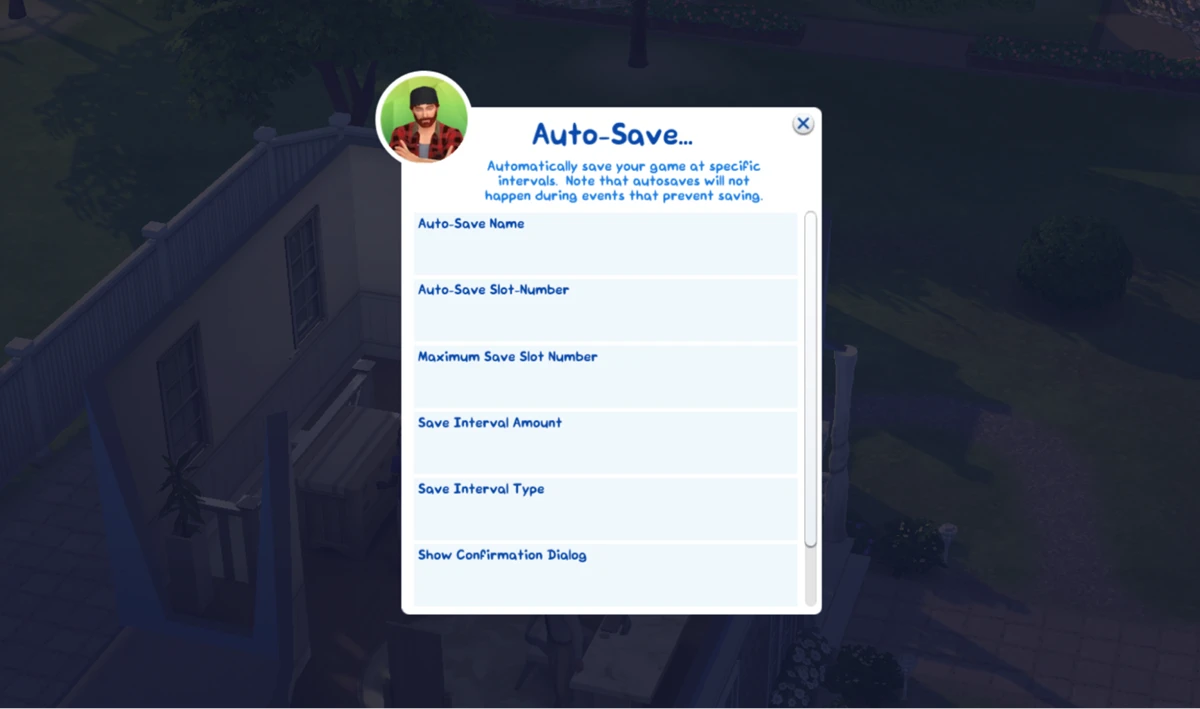
The feature automatically saves your game at set intervals. Rather than overwriting a single file, MCCC creates new save slots each time (think "Save As"), with the default file name being "MC Save" followed by a slot number.
Things to Keep an Eye On
Number of slots. By default, MCCC uses one autosave slot, but you can bump that up to 10. If you set too many slots, your saves folder can balloon in size pretty quickly.
Saving during events. Autosave won't kick in during events that block saving – for example, active career tasks or special in-game events.
Recommendation. Keep an eye on how many autosave slots you're using, and make a habit of clearing out old files from your saves folder every now and then to keep things from getting cluttered.
Deleting NPCs: Tread Carefully
MCCC allows you to delete just about any character, including essential NPCs such as repo men, service workers, and so on. This can lead to some serious headaches.
The game may freeze when you try to save, because it still thinks the character is on the lot and carrying out their function. For instance, deleting a repo man can cause the game to fail to properly process events tied to bills and evictions.
Recommendation
Avoid deleting key NPCs, especially those tied to in-game events. If you need to "get rid of" a character, it's better to go about it another way, such as moving them into a different household or letting them die of natural causes.
Other Risky Settings and Situations
Story Progression
On its own, this feature isn't dangerous, but using it without a clear plan can lead to dead saves and a world thrown into complete chaos. Blindly enabling all autonomous functions can cause NPC households to move, get married, and have children en masse, which can derail your storyline plans and flood the world with characters.

Recommendation: Take the time to go through each Story Progression setting carefully. If you play a rotational game, make sure to enable the option to ignore played households, so MCCC doesn't interfere with the families you're actively playing.
Mixing MCCC File Versions
Using files from different versions of the mod is one of the leading causes of errors. All mod files (.ts4script and .package) must come from the exact same version. Mixing old and new files can result in missing menus, broken settings, or save errors.
How to Protect Your Saves: General Tips for Working With MCCC
To keep the risks to a minimum, follow these straightforward rules:
— Always back up your save before making any global changes in MCCC.
— Don't change the in-game time speed unless you have a good reason to, and if you do, use the "safe" method described above.
— Don't increase the maximum household size unless you absolutely have to. If you do decide to go for it, keep a close eye on your sim count and game performance.
— Keep your Story Progression settings in check. Turn off autonomous functions for played households and make sure NPCs don't end up taking over the world.
— Update MCCC the right way. When updating the mod, only delete the .package and .ts4script files, leave the configuration files (mc_settings.cfg and others) in place so your settings are preserved.
— Install the mod correctly. The .ts4script files must be placed no more than one folder deep inside the Mods folder. Improper installation is one of the top reasons MCCC stops working or starts spamming error messages.
— Watch out for mod conflicts. Read mod descriptions carefully and check whether they have any known conflicts with MCCC.
— Use "Restore Save". If you suspect your save is corrupted, try restoring an earlier version through the game's load menu.
MC Command Center is an incredibly powerful tool, but that power calls for a careful hand. The biggest danger lies in the time speed settings, which can permanently break your calendar and your save file. You'll also want to think twice before bumping up the household size cap or deleting important NPCs. Keep in mind: one careless setting can cost you hundreds of hours of progress.