How to Assign Roles to NPCs in Sims 4 Using Cheat Codes
In The Sims 4, players are often unhappy with the random appearance of NPCs (non-playable characters) that the game assigns to important jobs. Sometimes these sims just don’t match their profession visually, or simply don’t look appealing. If you want more control over your game and its sims, there are several effective methods to fix unsatisfying NPC looks or swap their jobs.
One popular approach is to change an existing NPC’s appearance using the Sims 4 Command Center (MCCC). This method lets you copy data from a sim you like and apply it straight to an NPC, creating a better-looking townie instantly. For a full tutorial, check out our article:
What Is the #mccc_include Tag and How to Change NPCs in Sims 4
That method assumes you’ve already found an NPC with the role you want to update, and want to swap their appearance.
In this Sims 4 guide, we’ll cover a different process: assigning roles to your own customized sims (with any appearance you like) using Sims 4 cheat codes – no mods required!
Assigning Roles to Sims Using Sims 4 Cheat Codes
Why use cheat codes?
— No mods necessary: No need for Command Center or custom scripts; these cheats are built right into Sims 4.
— Quick and easy: Assign any role in seconds – just copy and paste some codes.
— Portable NPCs: Created NPC sims can be saved to your Sims 4 Library, re-used in any new game save, or shared with other simmers.
What You’ll Need:
- Sims from your Library ready to take on any NPC role (bartender, gardener, mailman, etc.)
- Sims 4 cheat codes for assigning roles (see instructions below)
Characters can be created yourself, found in the in-game Gallery, downloaded from creators on the internet, or you can use our large collection of attractive and distinctive sims:
List of 1000+ CC FREE NPCs for your The Sims save
Where to Find Sims 4 Role Assignment Cheat Codes
On the official EA forum, the user EgonVM has put together a comprehensive thread of cheat codes for every possible Sims 4 NPC job. You’ll find all the current codes in his post, just follow this link.
Important to Note:
— Not all NPC roles are assignable (some are reserved by the game), as described in EgonVM’s list.
— Always check prerequisites: sims age, personality traits, skills, or type (e.g., only adults).
— After assigning a job, you might need to take extra steps: some can simply be evicted from the lot, others also need to be moved to unplayed households.
Step-by-Step: How to Assign NPC Roles in Sims 4 (With Cheat Codes)
Step 1: Find the Role and Read Requirements
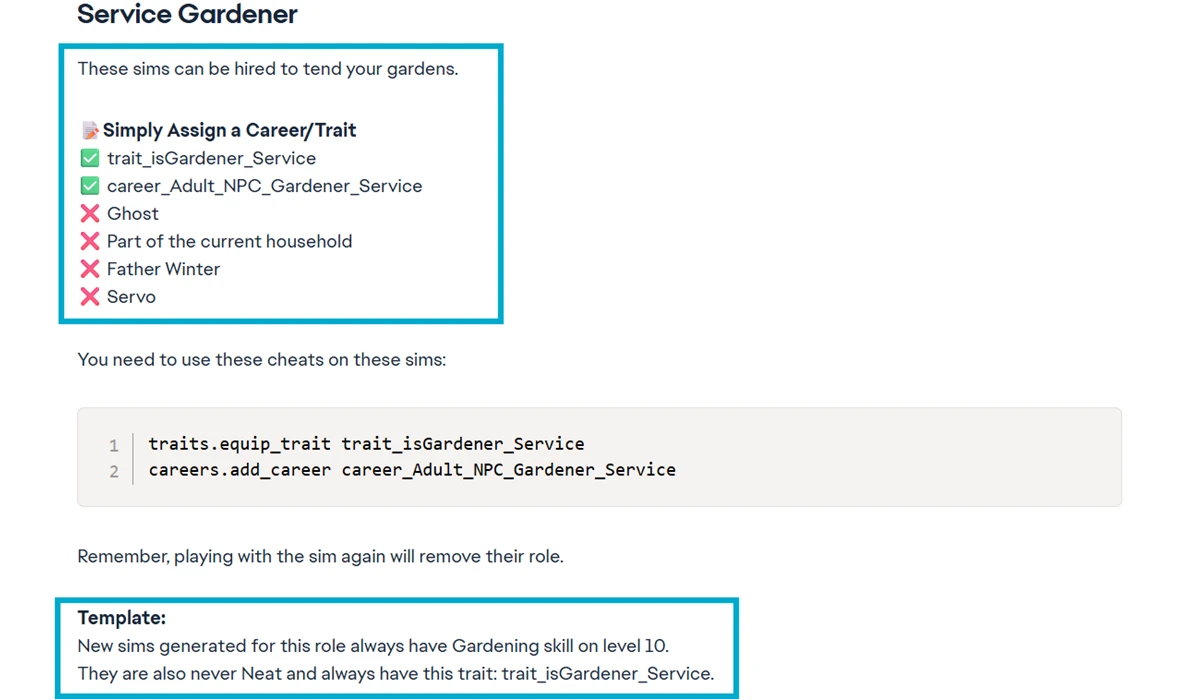
Open the forum guide, search (Ctrl+F) for your desired profession (e.g., “Gardener”), and review available NPC types. Check all requirements carefully.
Step 2: Prepare Your Custom Sim
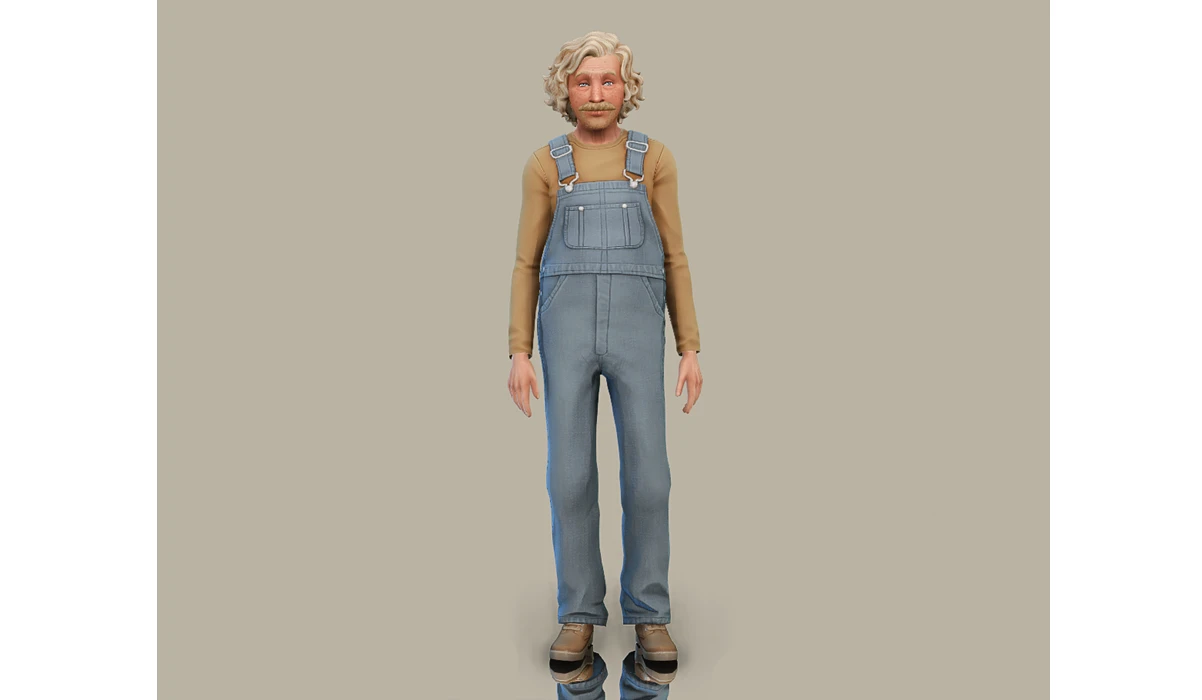
Choose or create a sim from your Library who fits the role – maybe a colorful elderly sim for your Service Gardener – and move them into any lot.
Step 3: Enable Sims 4 Cheats
Press Shift+Ctrl+C to open the cheat console and type testingcheats on.
Step 4: Assign the NPC Role
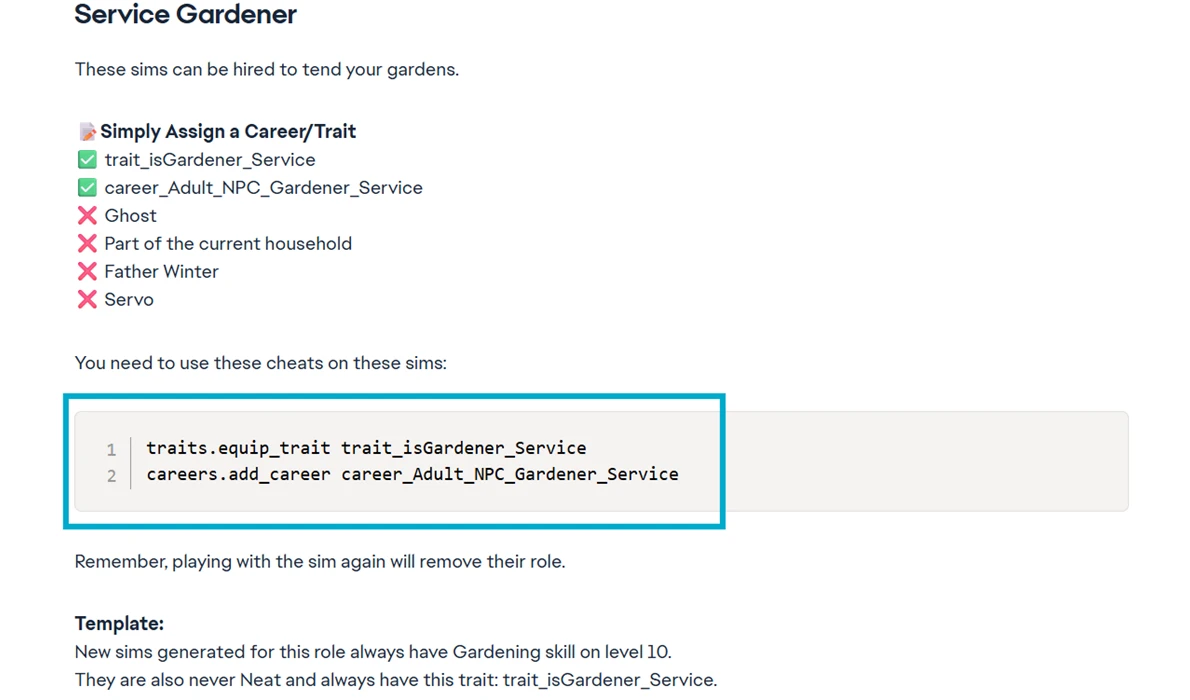
With the console open, copy the correct Sims 4 role assignment code(s) from the guide. Select your sim’s icon (bottom of screen) and paste the code in the cheat window. Some roles require two codes – enter them in order.
Step 5: Finalize the New NPC
Open the world map, evict the sim from your lot.
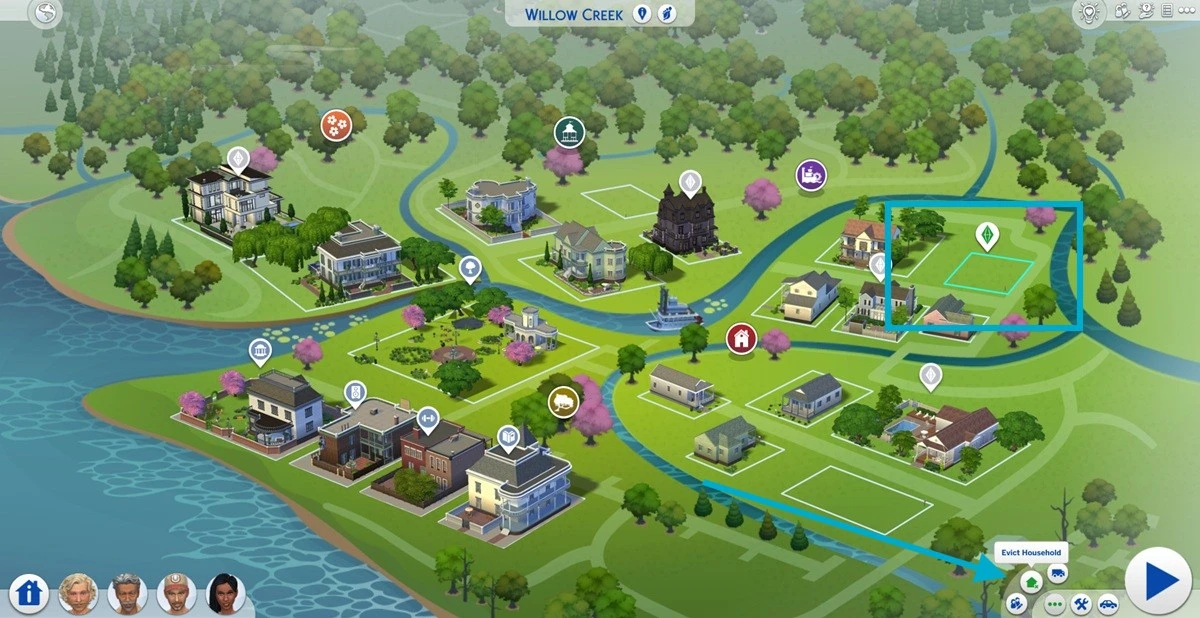
Go to Household Management and move them to “Unplayed Households”.
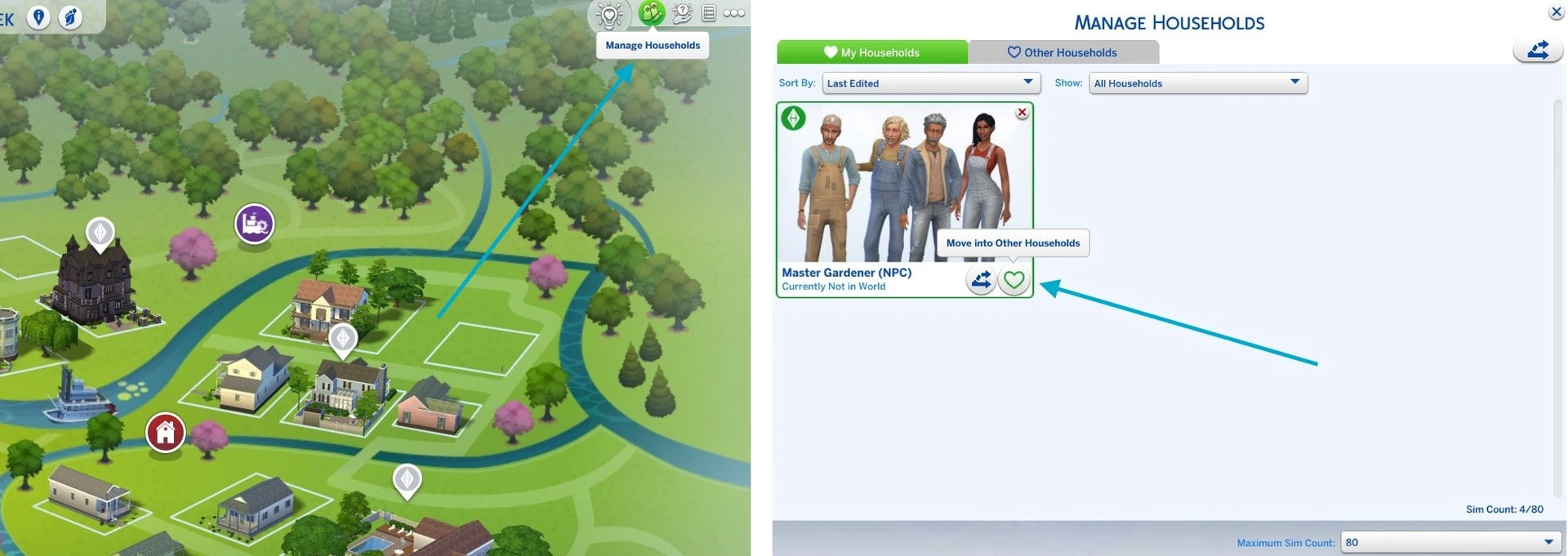
That’s it! Next time you need a gardener (or another NPC), your hand-picked sim will show up.
Note: Work Uniforms and Appearance
Some NPC jobs in Sims 4 come with forced work outfits, overriding your custom looks (e.g., maid uniforms, gardener overalls). If this isn’t an issue, the cheat code method works great. Otherwise, consider using the “appearance copying” method via Command Center (MCCC) for better control.
How to Save NPCs to Your Sims 4 Library
Want to use your perfect custom NPCs in new saves? Open Household Management while in neighborhood view and save your household to the Library. Optionally, label them as “NPC with role assigned.”
Important: If you start playing as these Sims, the NPC role will be removed by the game.