Paralives and Steam Workshop: How to Download Mods, Share Builds, and Create Content
We all love mods and custom content that add interesting clothes, hairstyles, and even furniture. The developers of Paralives decided not to fall behind on this front and made modding an integral part of the game. We already wrote about how to create mods for Paralives and reviewed the instructions from the developers. In this article, we'll tell you how to upload and download mods via Steam Workshop.
You might also be interested in: a review of the new city of Melino in Paralives, a detailed breakdown of Build Mode, and the gameplay trailer that the developers released 5 days before Paralives' early access launch.
What is Steam Workshop and why do you need it?
Steam Workshop, in other words the "Workshop," allows players to share their content without the help of third‑party sites. Developers can integrate it into their games so that players can easily share their creations with each other and download them.
For Paralives, this means you no longer have to trawl through unfamiliar sites and manually place files into the right folders. Everything the community creates — mods, lots, households — can be found and installed right in Steam, and the game itself will take care of updates.
How to find and download a mod, house, or character?
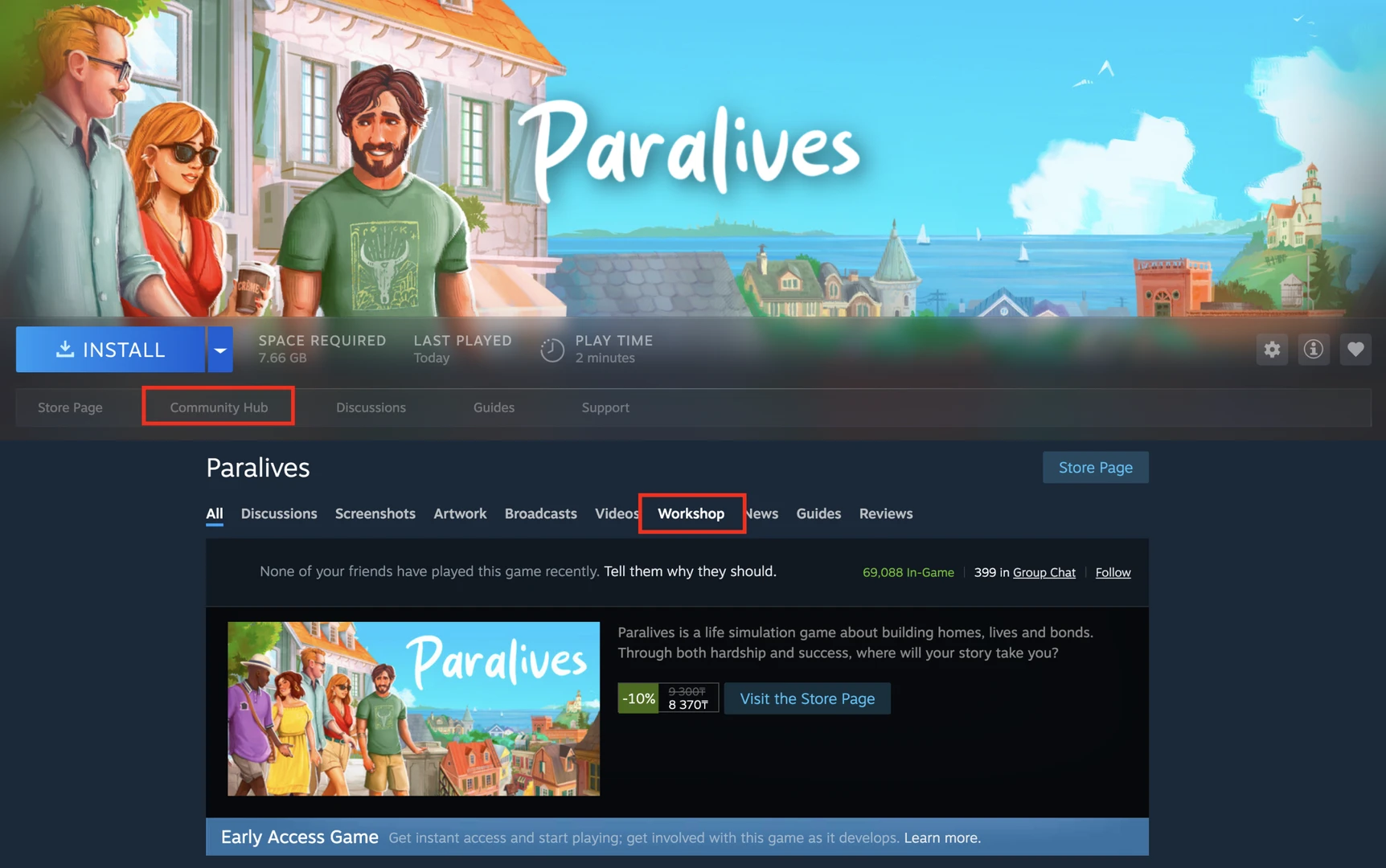
First, you need to go to the "Community Hub" on the Paralives page, then go to the "Workshop" tab in the top menu. Keep in mind that the Workshop is only available if you have purchased the game.
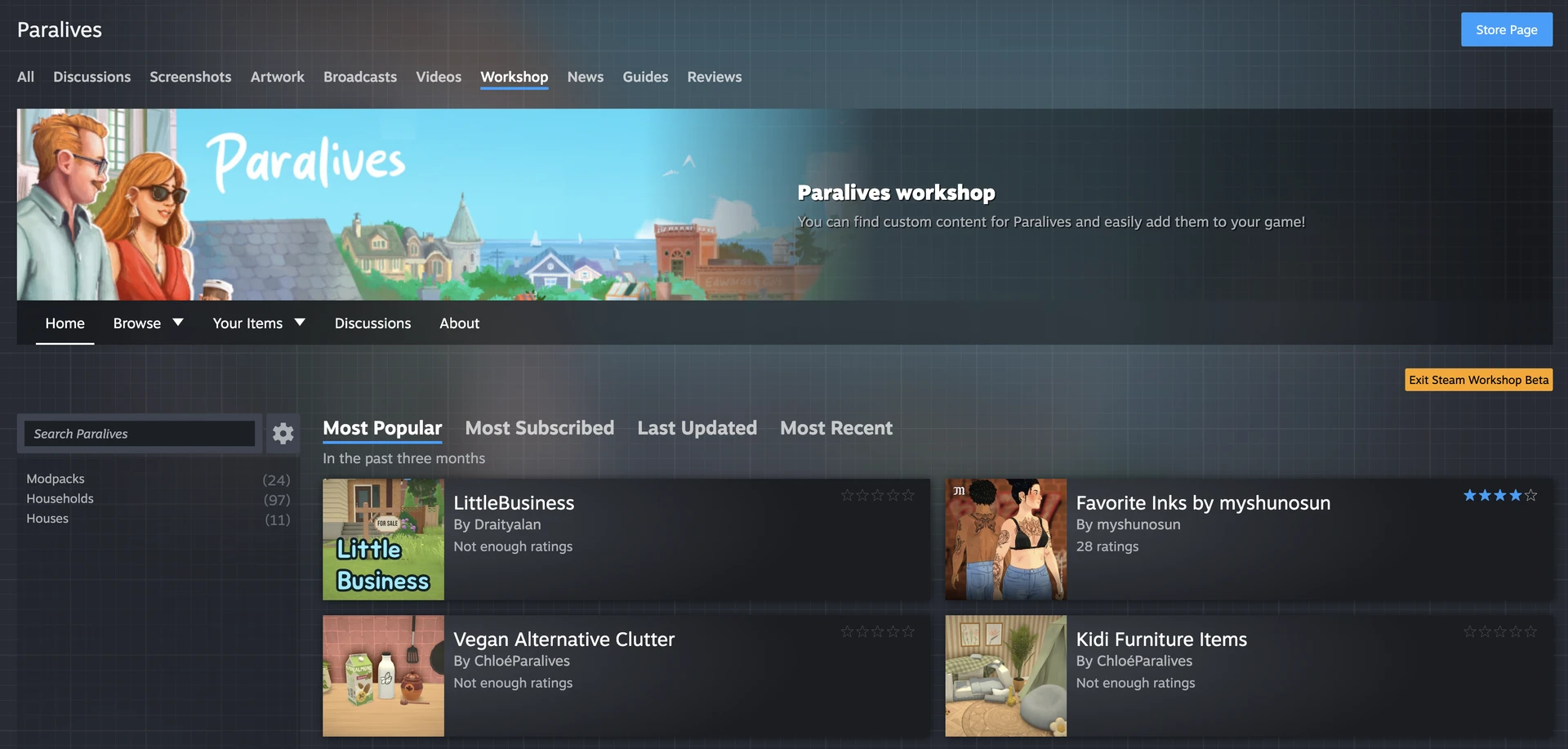
On the Workshop page, you'll see popular uploads, or you can use filters to browse the entire catalog.
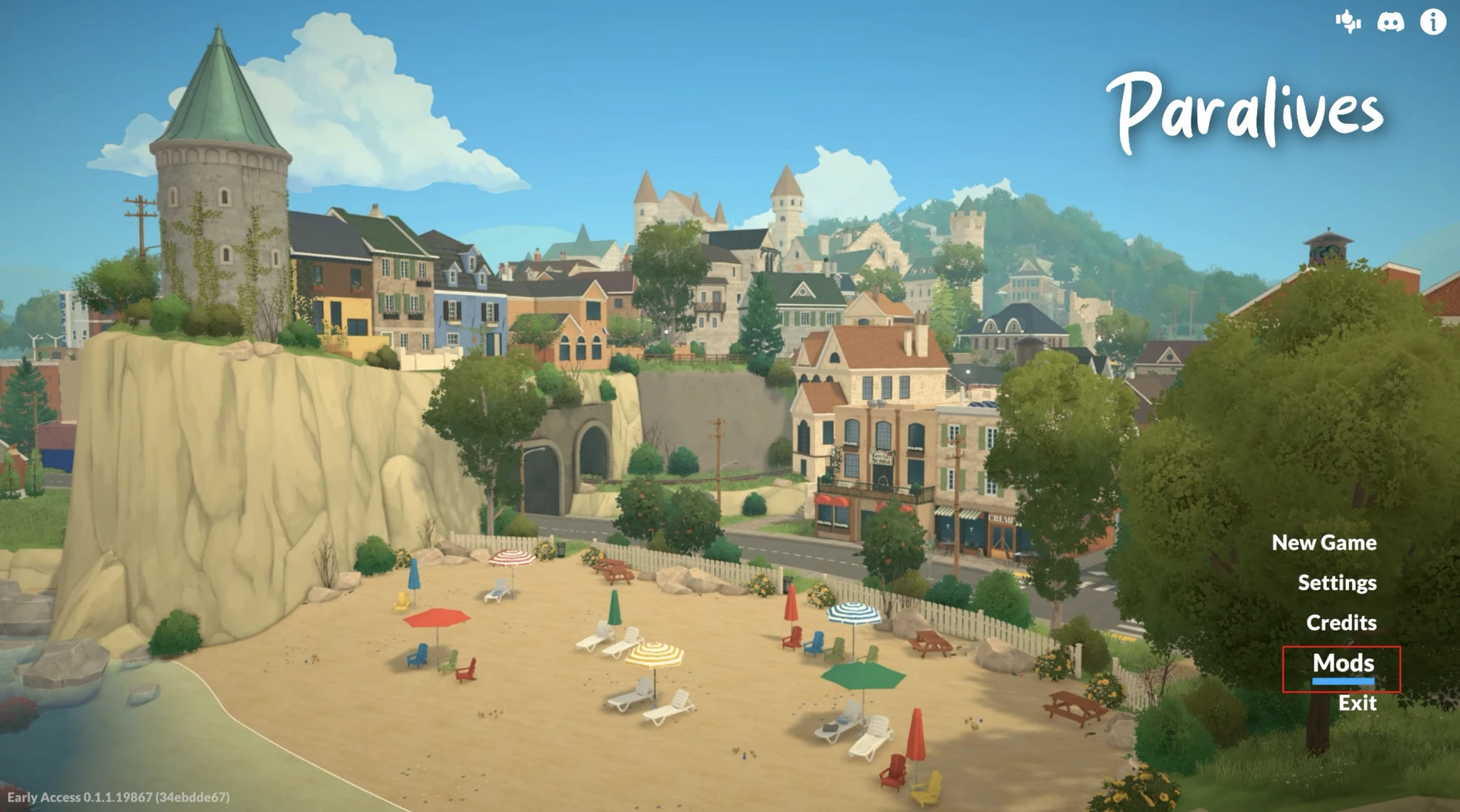
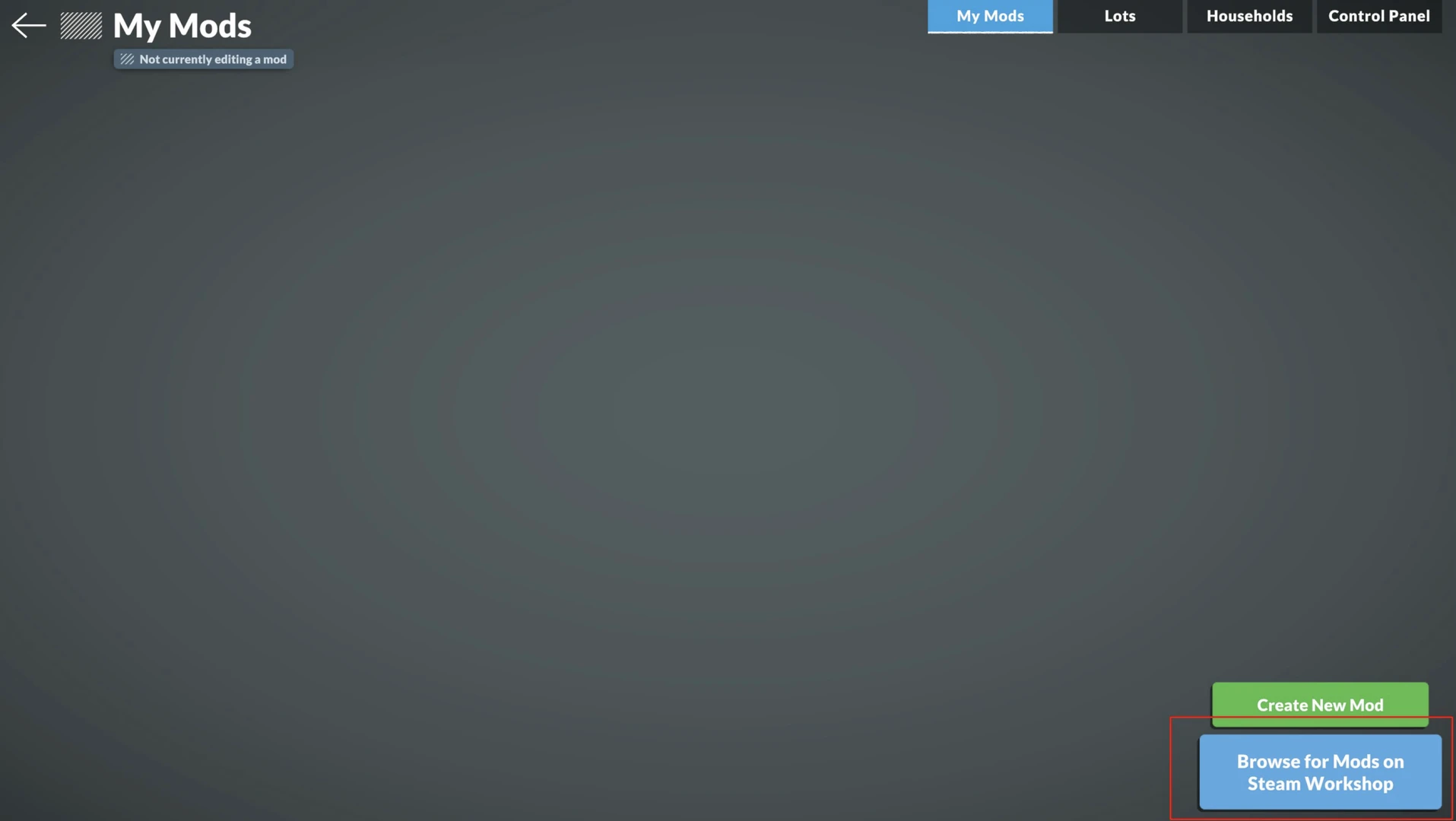
You can also get to this page through the game by clicking the "Mods" button in the main menu, then "Browse for Mods on Steam Workshop":
Installing mods in Paralives
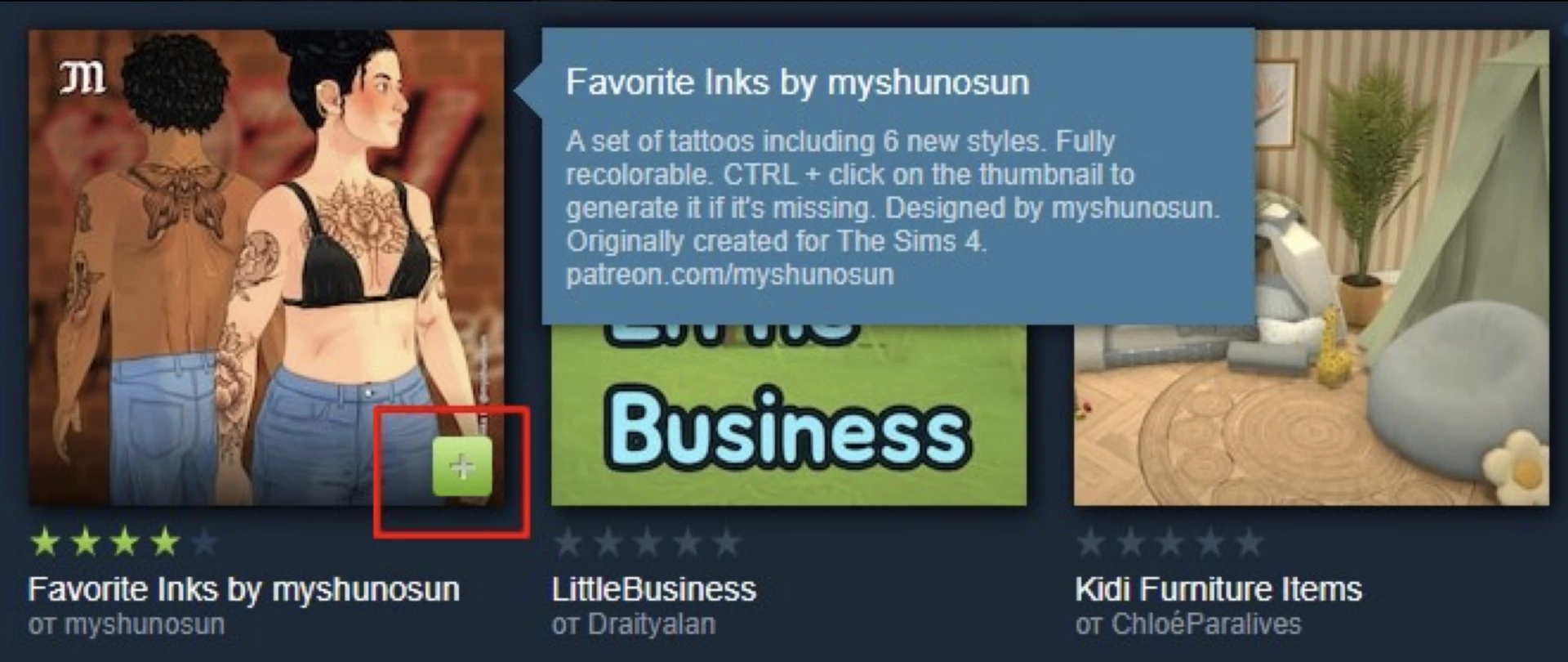
After we've found the Workshop, choose any mod you like. Hover your cursor over the item you want and click the plus sign that appears.
To make sure the mod is installed, go to "Mods" → "My Mods". Your entire downloaded library will be there.
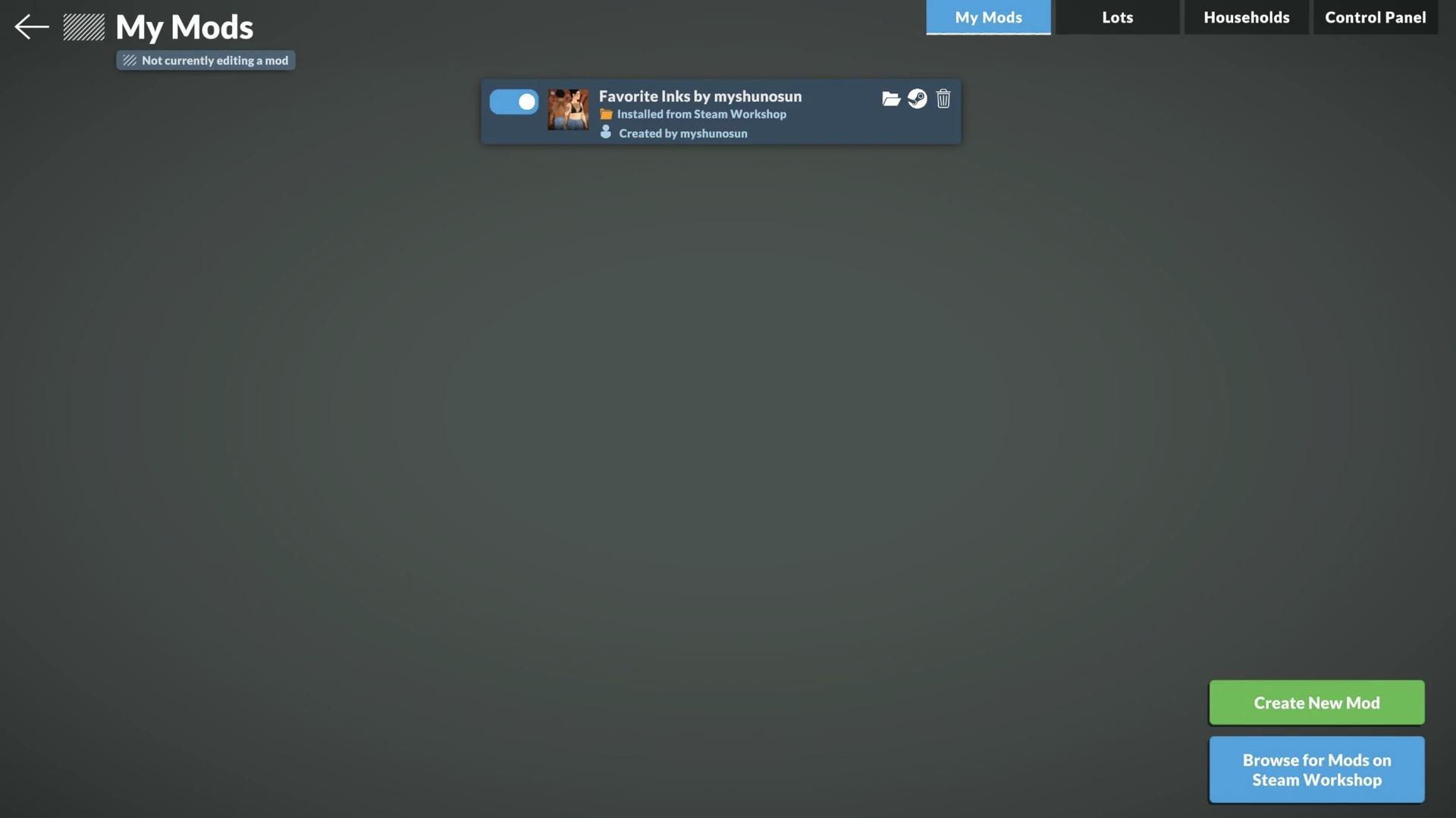
Best news for those who keep track of updates: when the author updates their mod, it will automatically update in your game. No more manually checking versions and reinstalling.
Categories and filters: how not to get lost in the abundance of content
In the Paralives Workshop, there are three main types of content:
- Modpacks — new furniture, interactions, radio stations, and more.
- Households — ready‑made families and individual characters.
- Lots — fully built houses and community spaces.
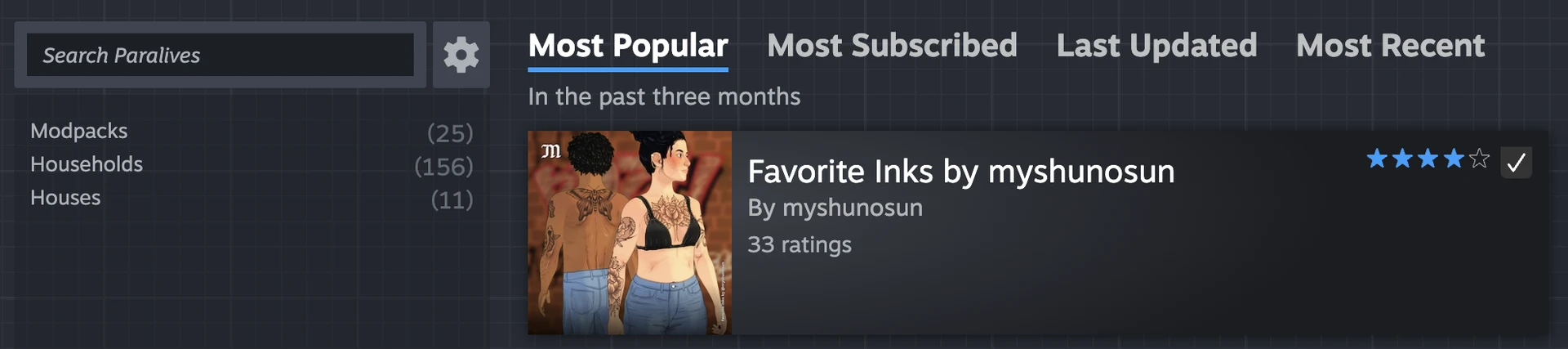
Filters are available on the left side of the screen: you can search for content published by friends, authors you follow, or content that's been added to someone's collections. In the drop‑down menu on the right, you can sort results by popularity, rating, publication date, and other parameters. Keyword search also works. All filters can be combined with each other, and you can save a favorite query for future searches.
How to manage downloaded content?
Everything you've installed can be found and deleted in one place.
Mods and modpacks: main menu → "Mods" → "My Mods".
Families and characters: open Paramaker → "Household Library" → switch to the "Installed from Workshop" tab.
Lots: in Town View, open the lot menu and select "Place a Lot from the Library".
All downloaded items (furniture, clothing, accessories) will appear in their usual sections. To tell a mod apart from standard content, the item's icon will have a little cloud symbol.
How to share your own creation?
The upload process is fully integrated into the game, and it's very convenient. Let's look at the example of a lot and a household.
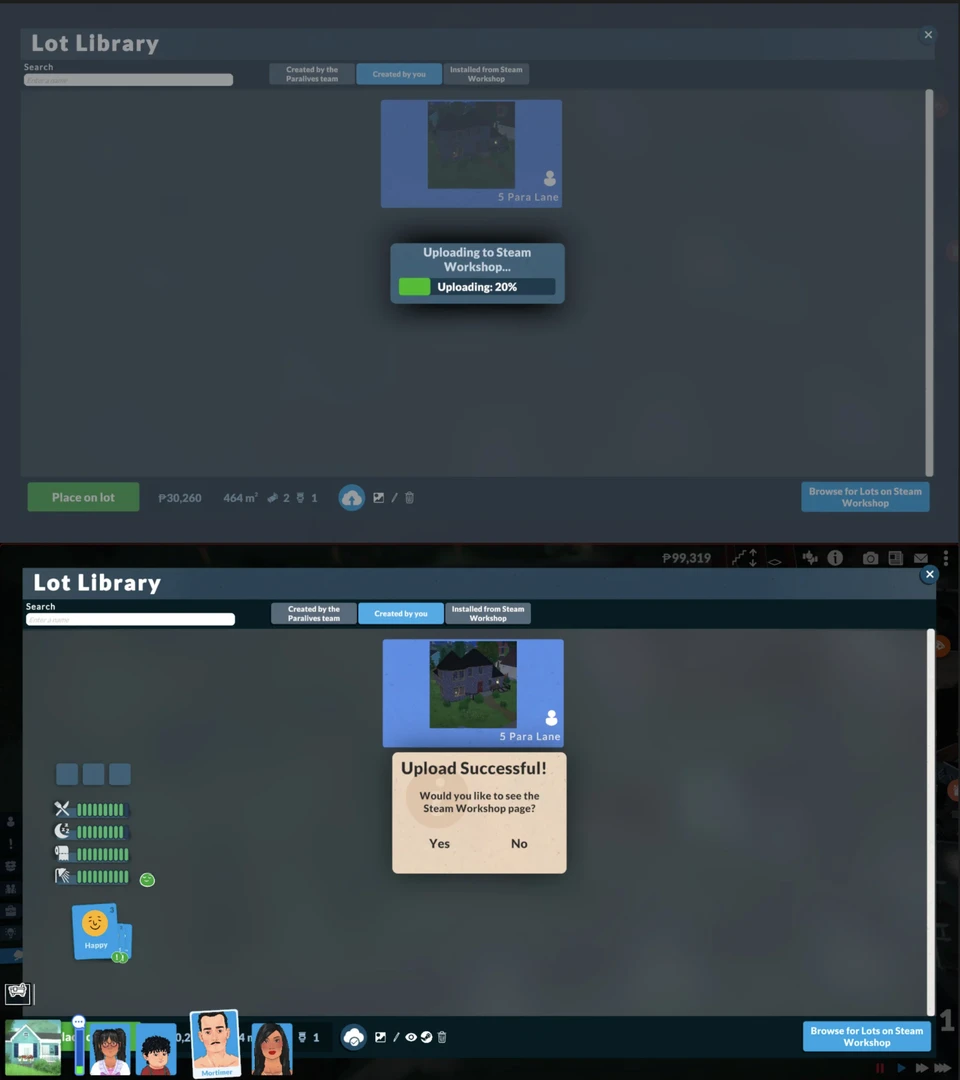
Uploading a lot
- After finishing construction, zoom out the camera so the lot options appear.
- Click "Save Lot in the Library", give it a name, and confirm.
- Go back to the lot menu, open "Place a Lot from the Library", find your lot.
- Click "Upload to Steam Workshop".
- Add a title, description, and your own thumbnail. It's recommended to use a square image (1:1 aspect ratio) so it doesn't get cropped.
- Click the upload button.
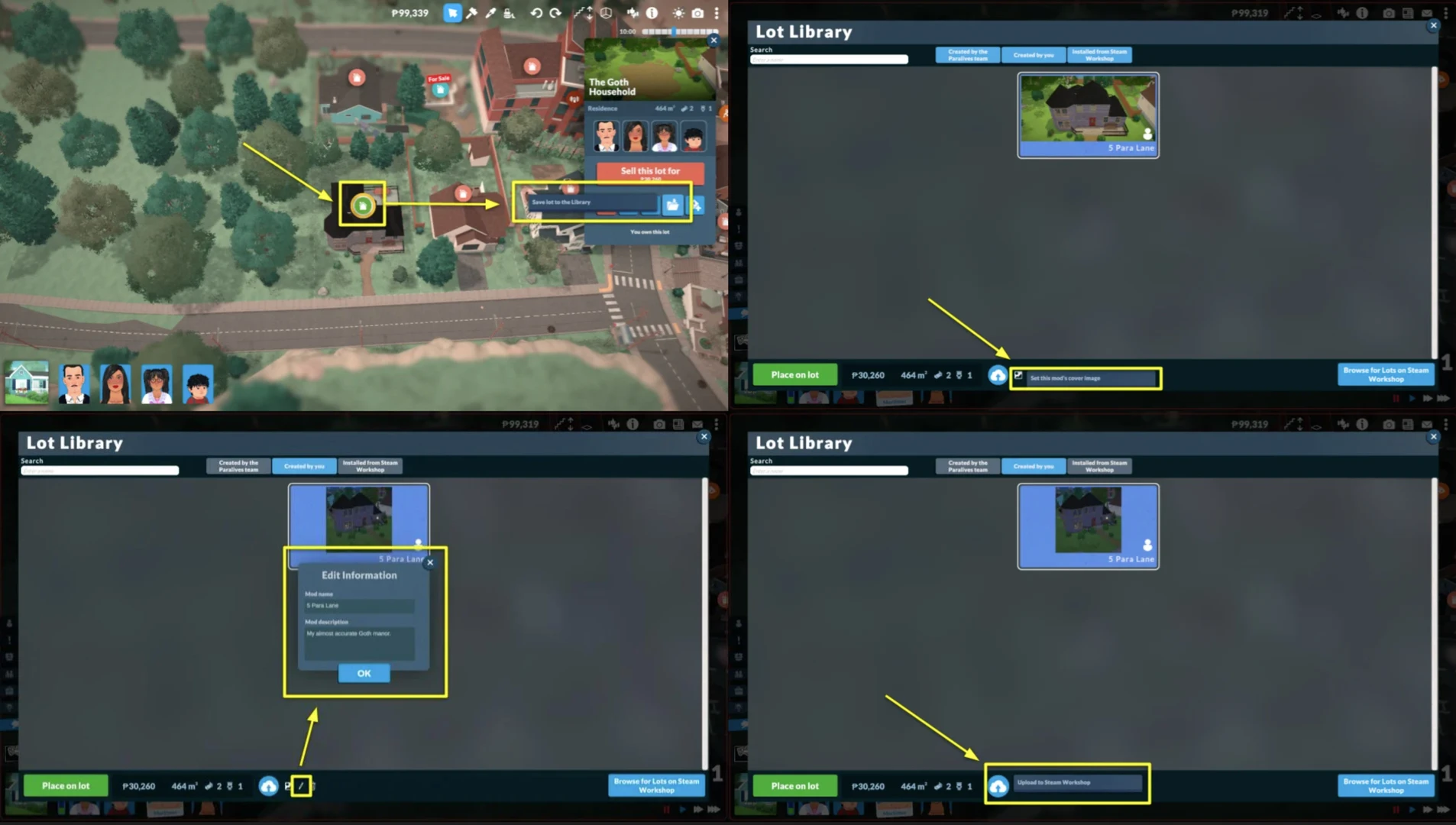
Source: simscommunity
Uploading households
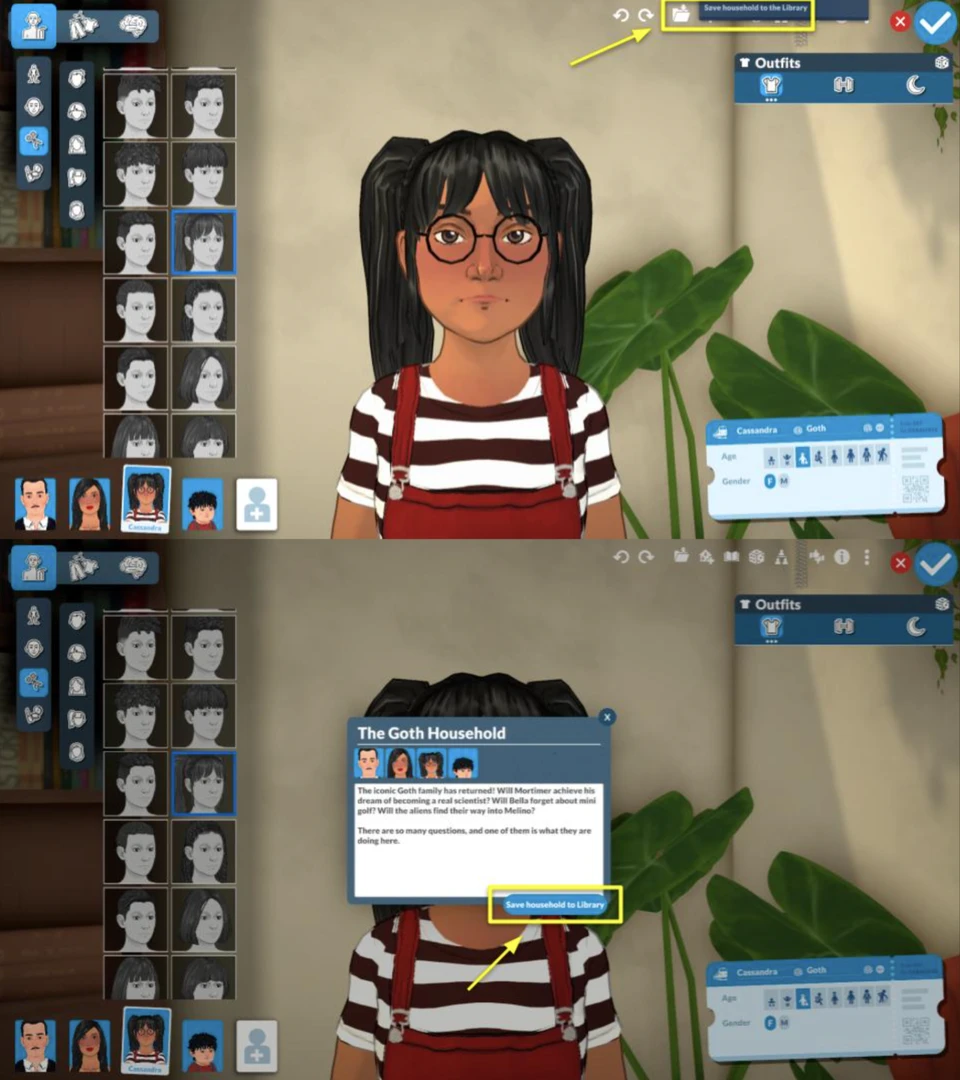
- After finishing editing the family in Paramaker, click "Save Household to Library". Don't forget to write a "bio" — it will become the description.
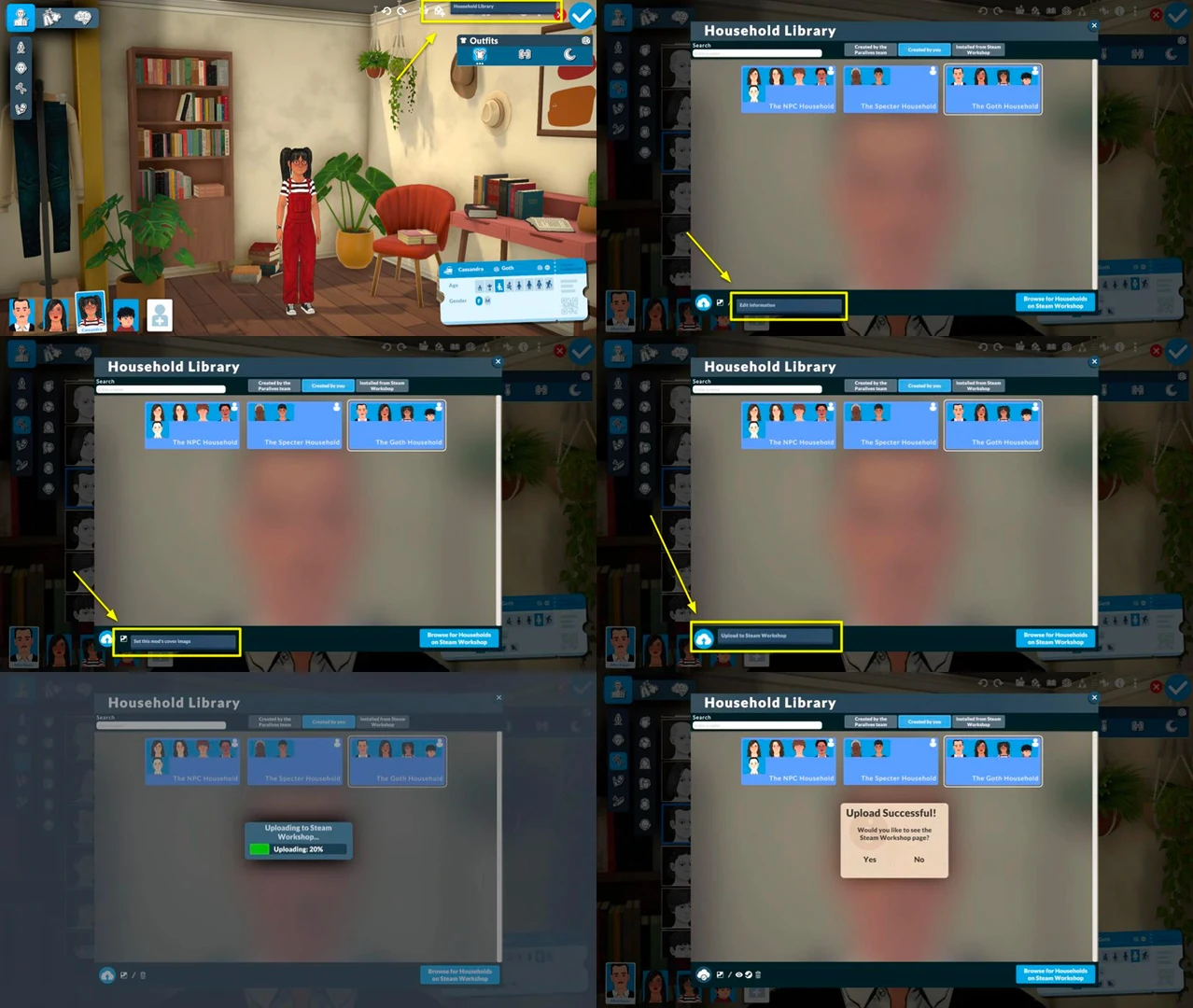
- In the "Household Library", select the family, click "Edit Information" (description) and "Set This Mod's Cover Image" (thumbnail).
- Then click "Upload to Steam Workshop".
Source: simscommunity
Important: after uploading, your creation will not appear in the Workshop instantly. It will go through moderation by Steam and the Paralives team. Once it's approved, it will become available to all players. You can update the thumbnail or description of an already published mod either through the Workshop page or in‑game: Main Menu → "Mods" → "Lots" → "Set This Mod's Cover Image".
In the past, life simulators often lacked a safe and convenient hub for sharing user‑generated content. Steam Workshop solves this problem: it's simple for newcomers, gives all the necessary tools, and adds a layer of security through moderation. Choosing the Workshop as the official modding platform is an excellent solution that makes players' lives much easier.